Visual Tour
Helm has two main surfaces: a menu bar popover for quick triage and a Control Center window for deeper management. This tour walks through each.
Menu Bar Popover
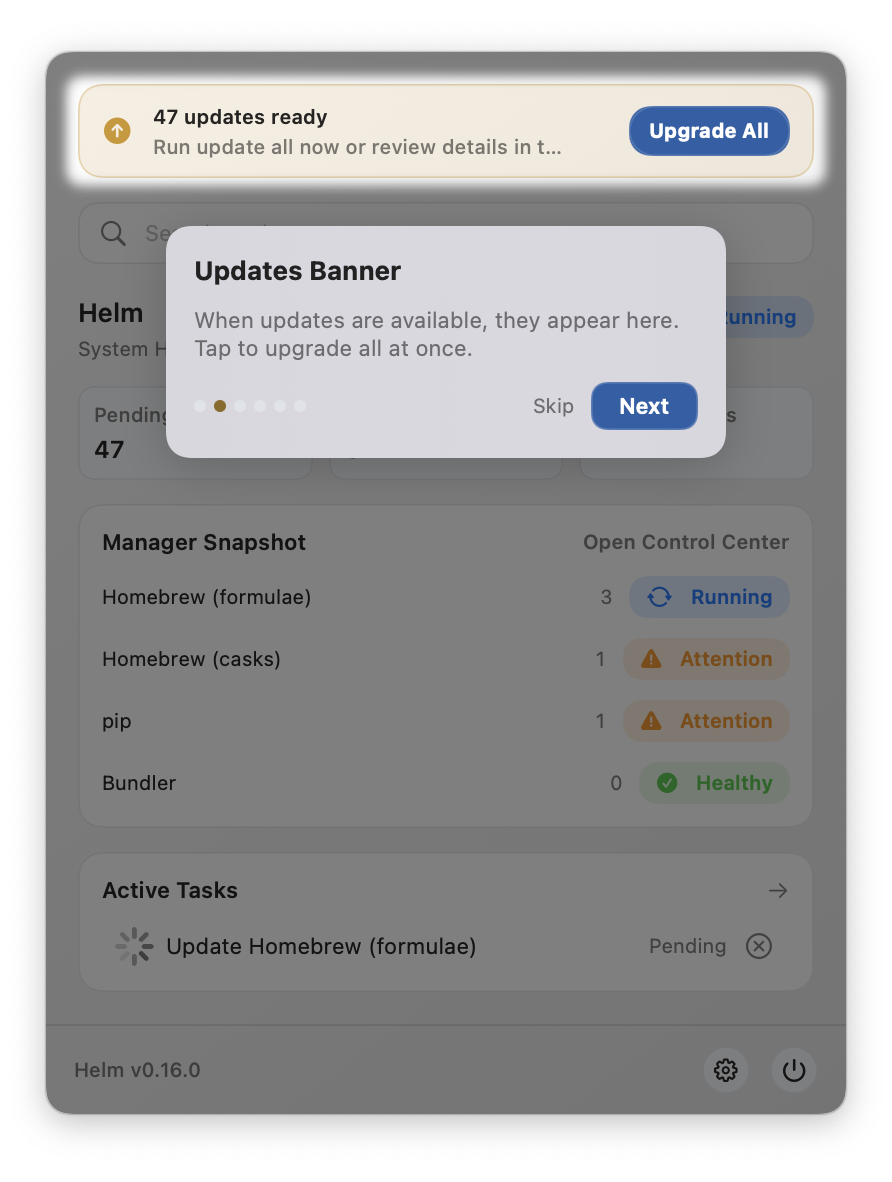
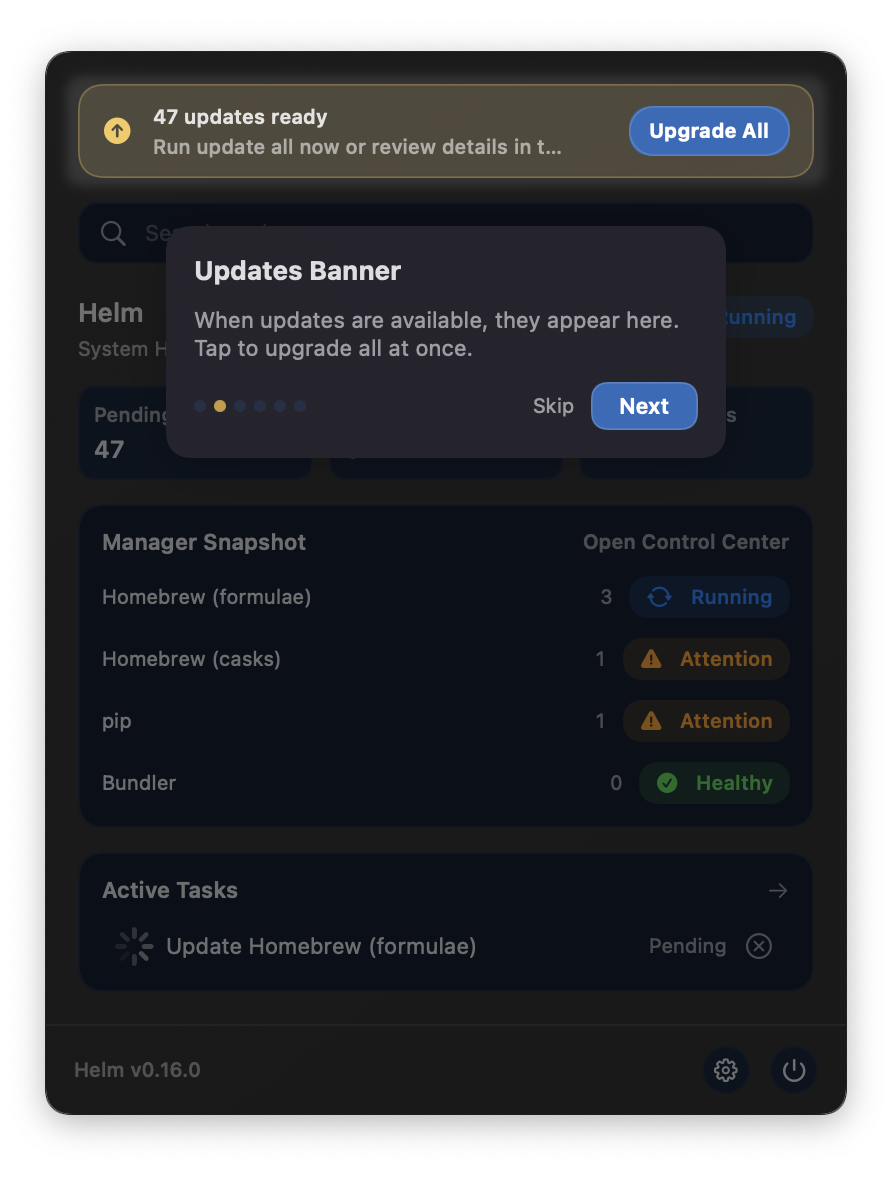
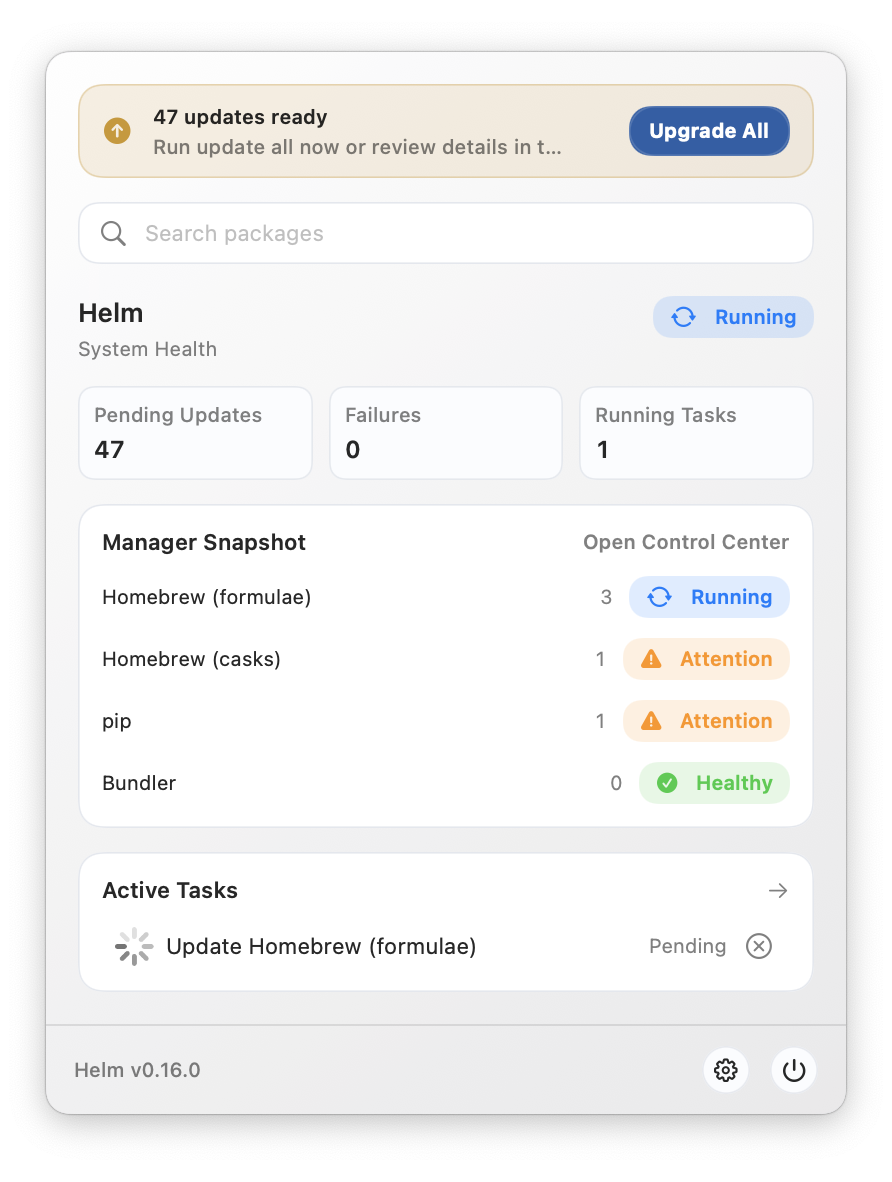
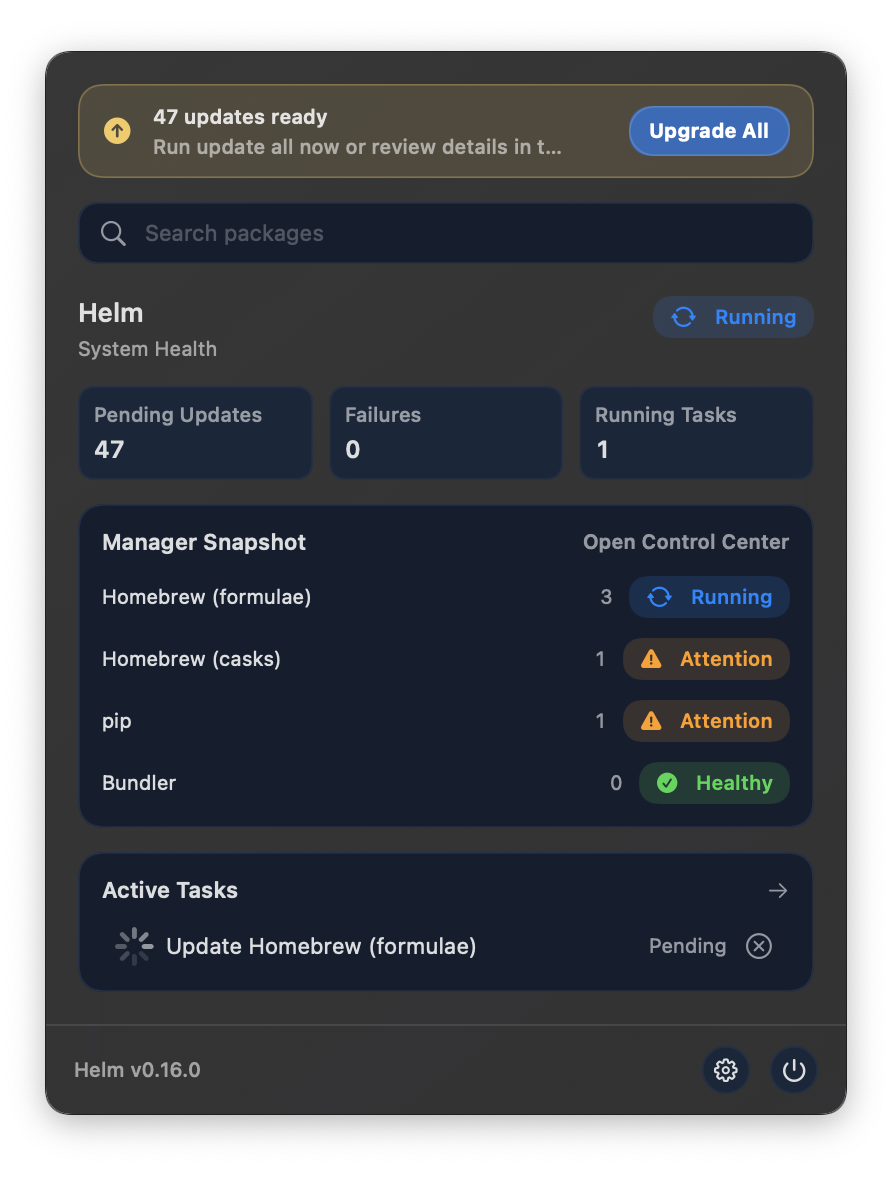
Section titled “Menu Bar Popover”Click the Helm icon in the menu bar to open the popover. It shows your environment health at a glance: update counts, active tasks, and quick actions.
Status Menu
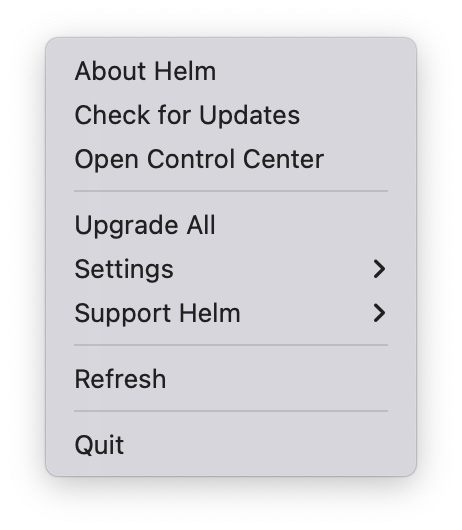
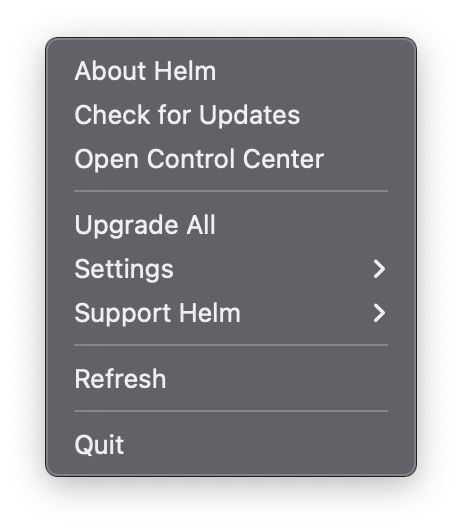
Section titled “Status Menu”Right-click the Helm icon for quick actions: About, Control Center, Upgrade All, Settings, Support Helm, Refresh, and Quit.
Control Center — Overview
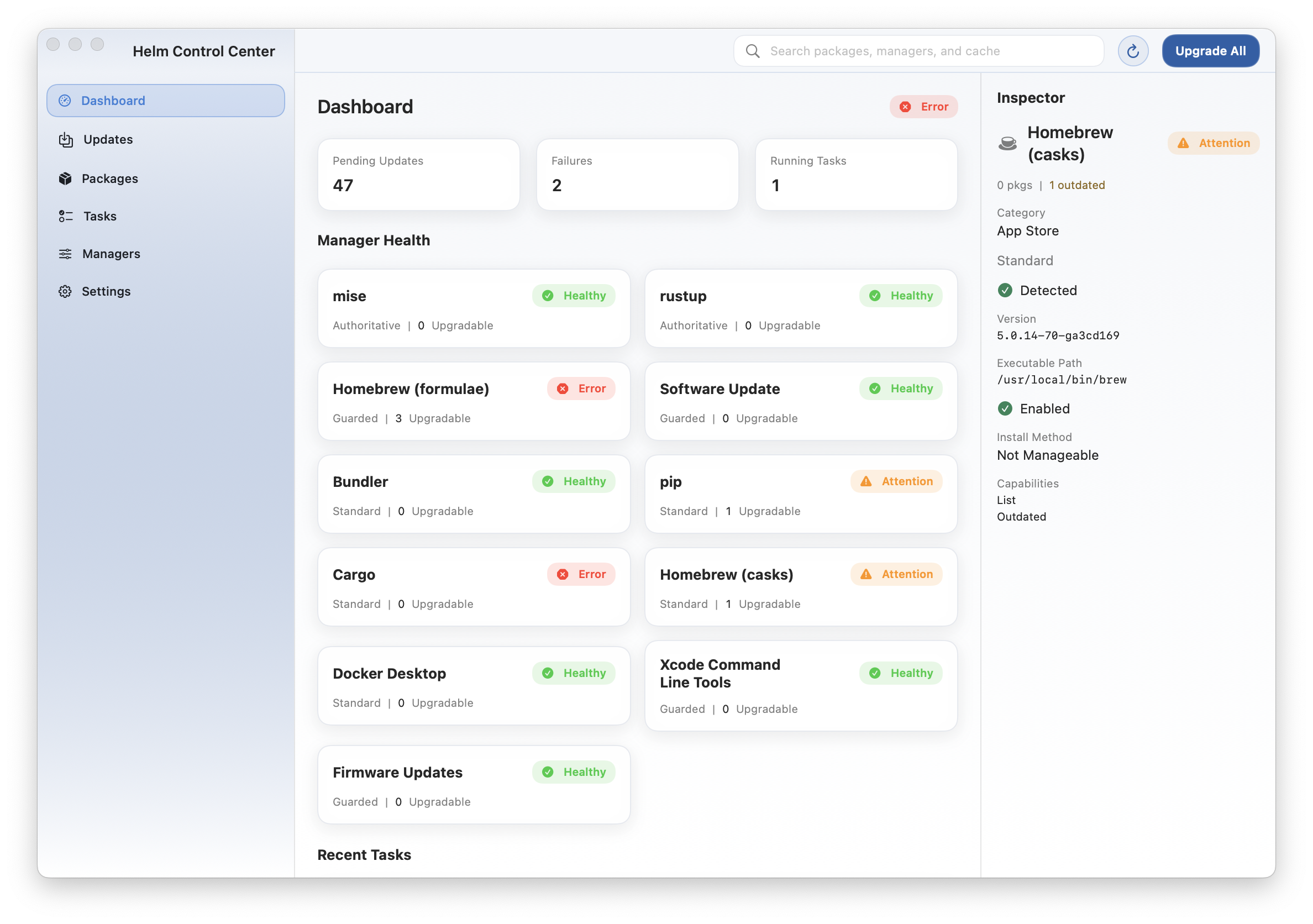
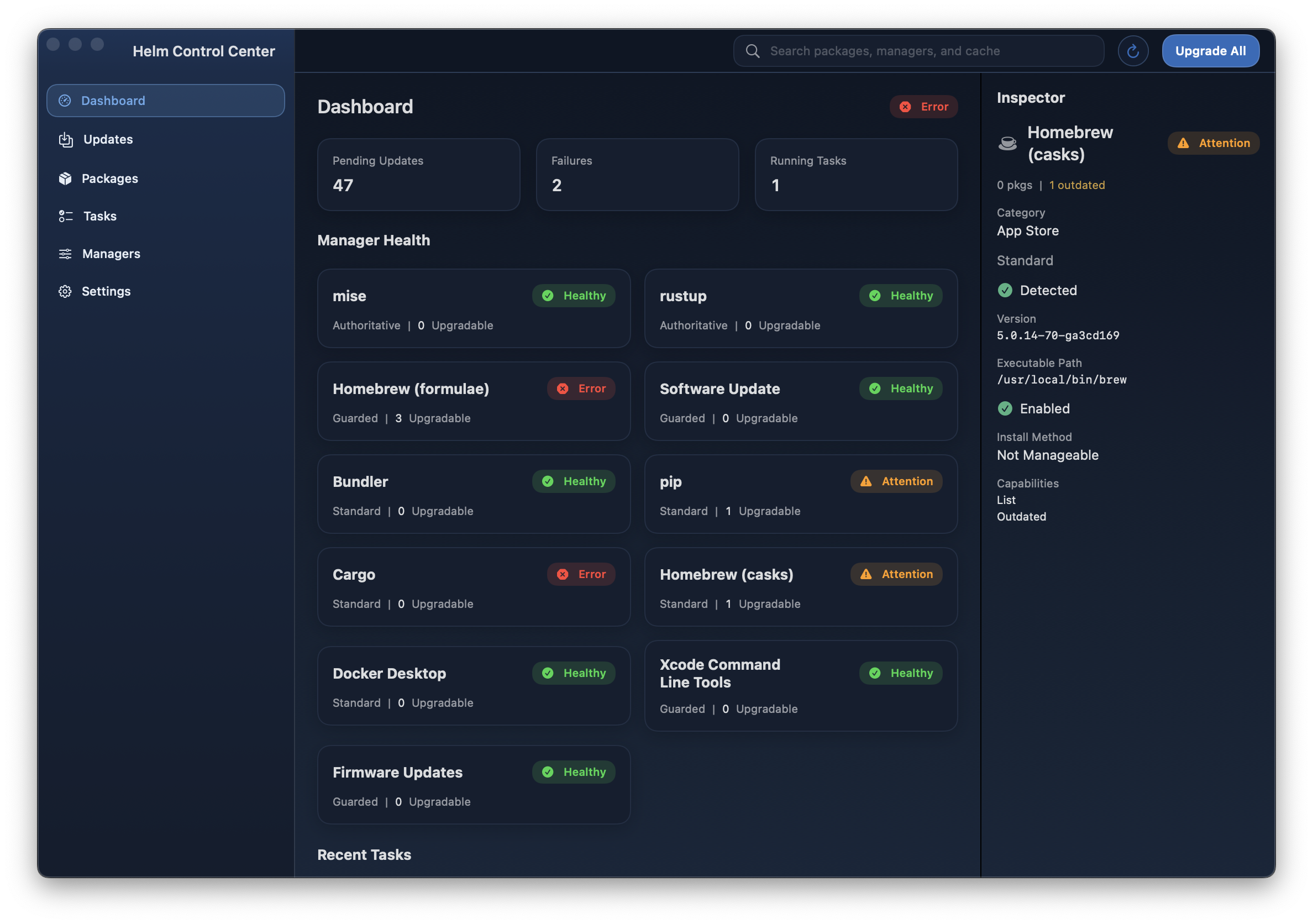
Section titled “Control Center — Overview”The Control Center is a standalone window with sidebar navigation. The Overview tab shows health posture, package statistics, the manager grid, and recent task activity.
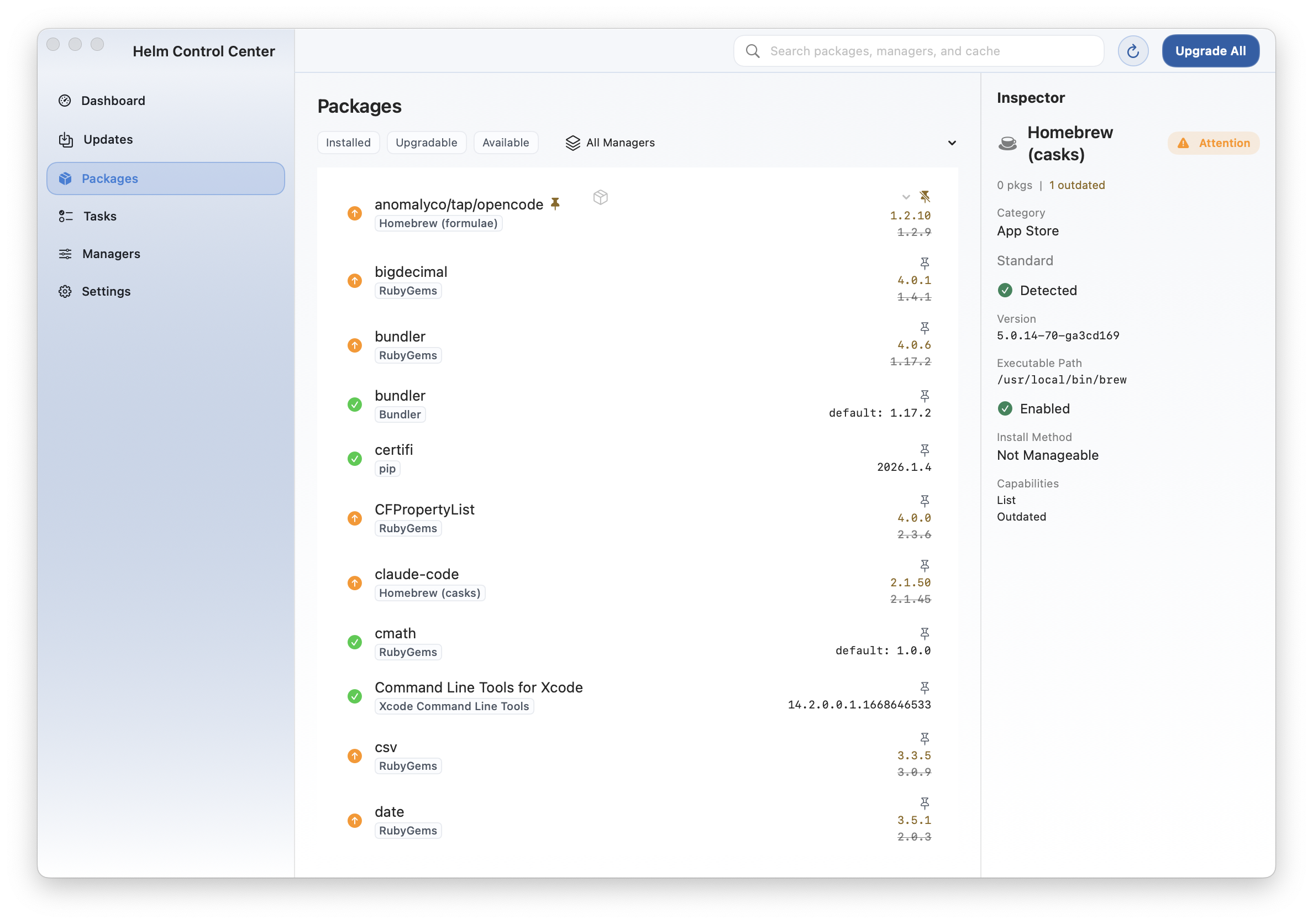
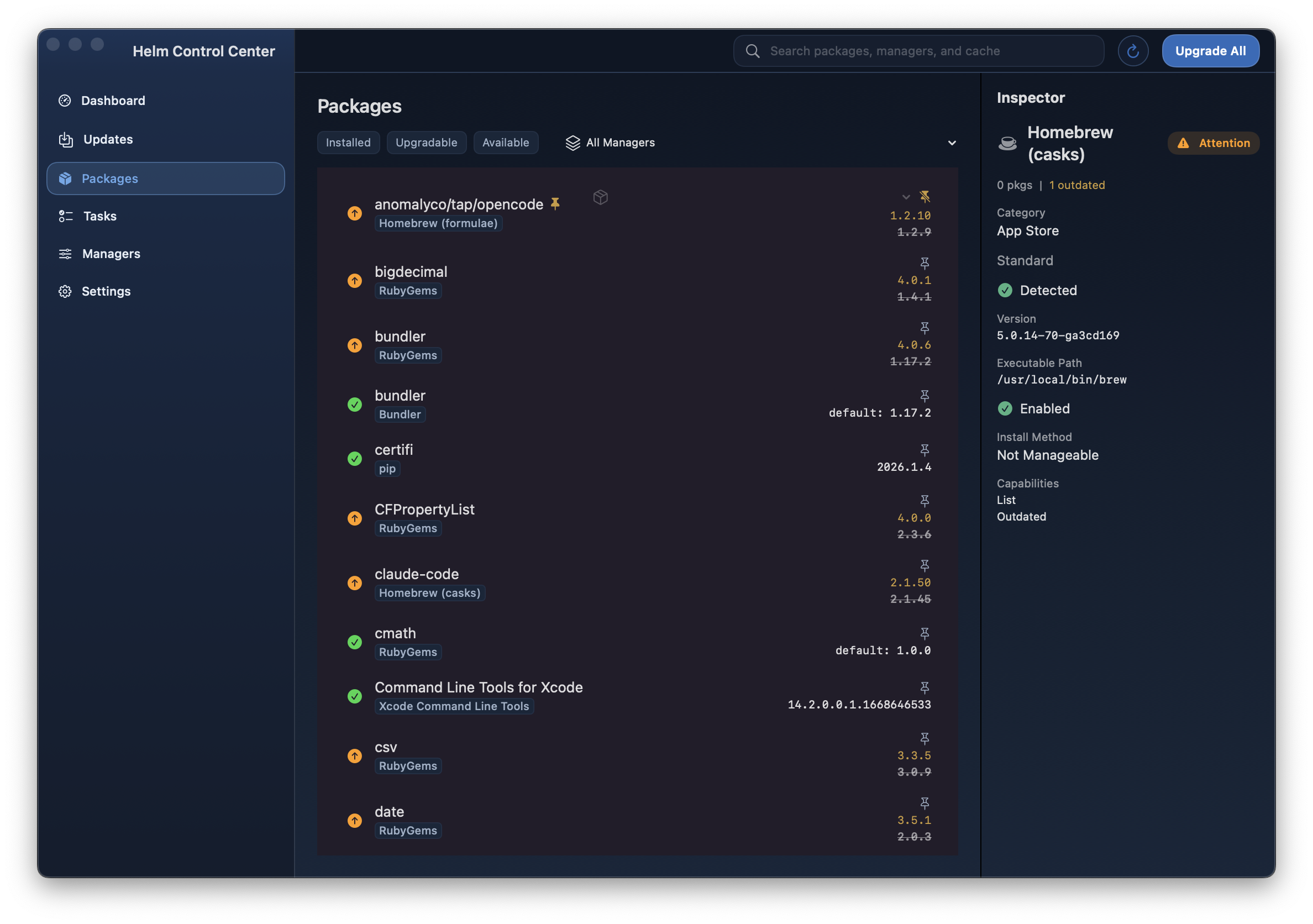
Control Center — Packages
Section titled “Control Center — Packages”Browse installed, upgradable, and available packages. Filter by status or manager. Click any package to see details in the inspector sidebar.
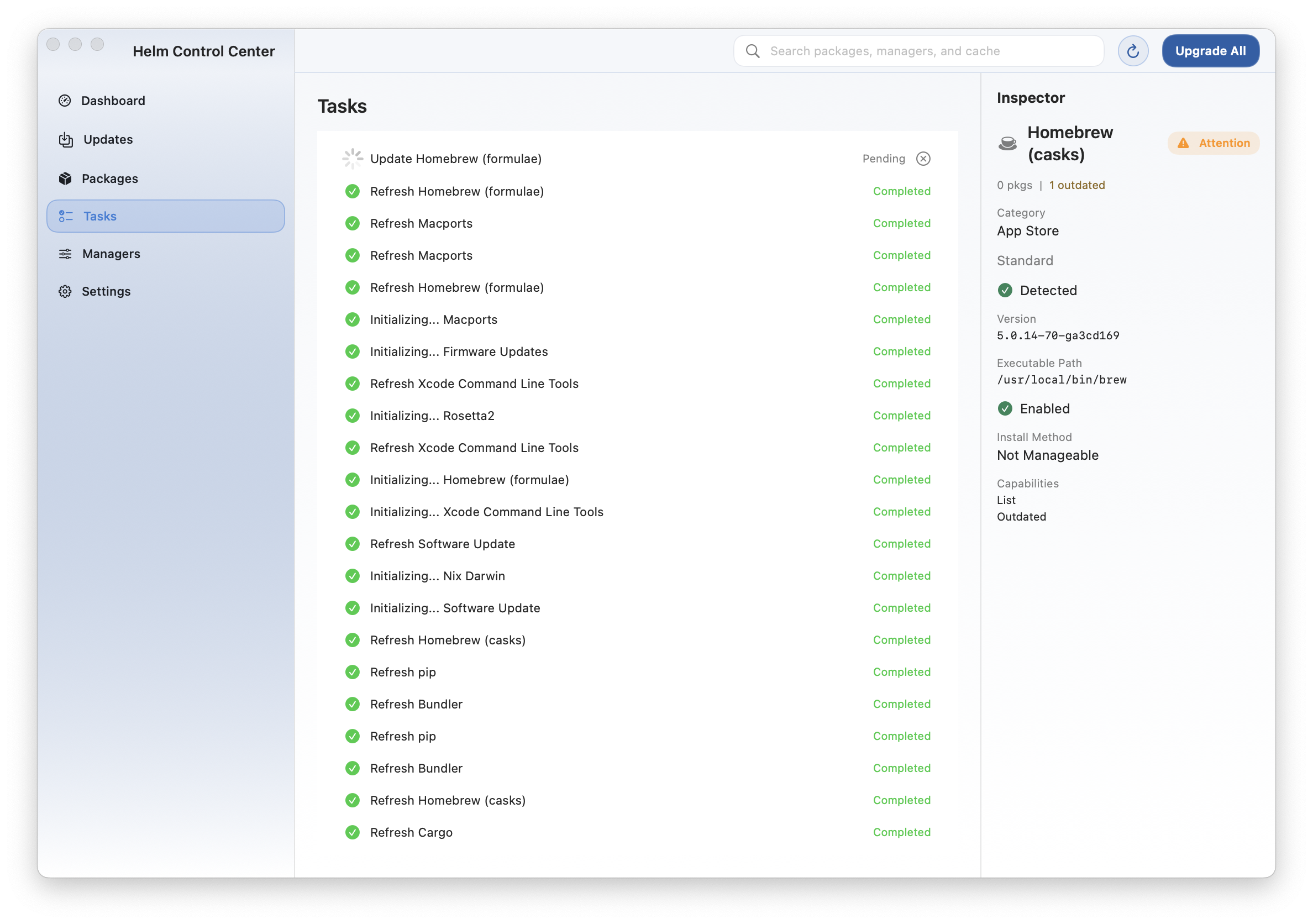
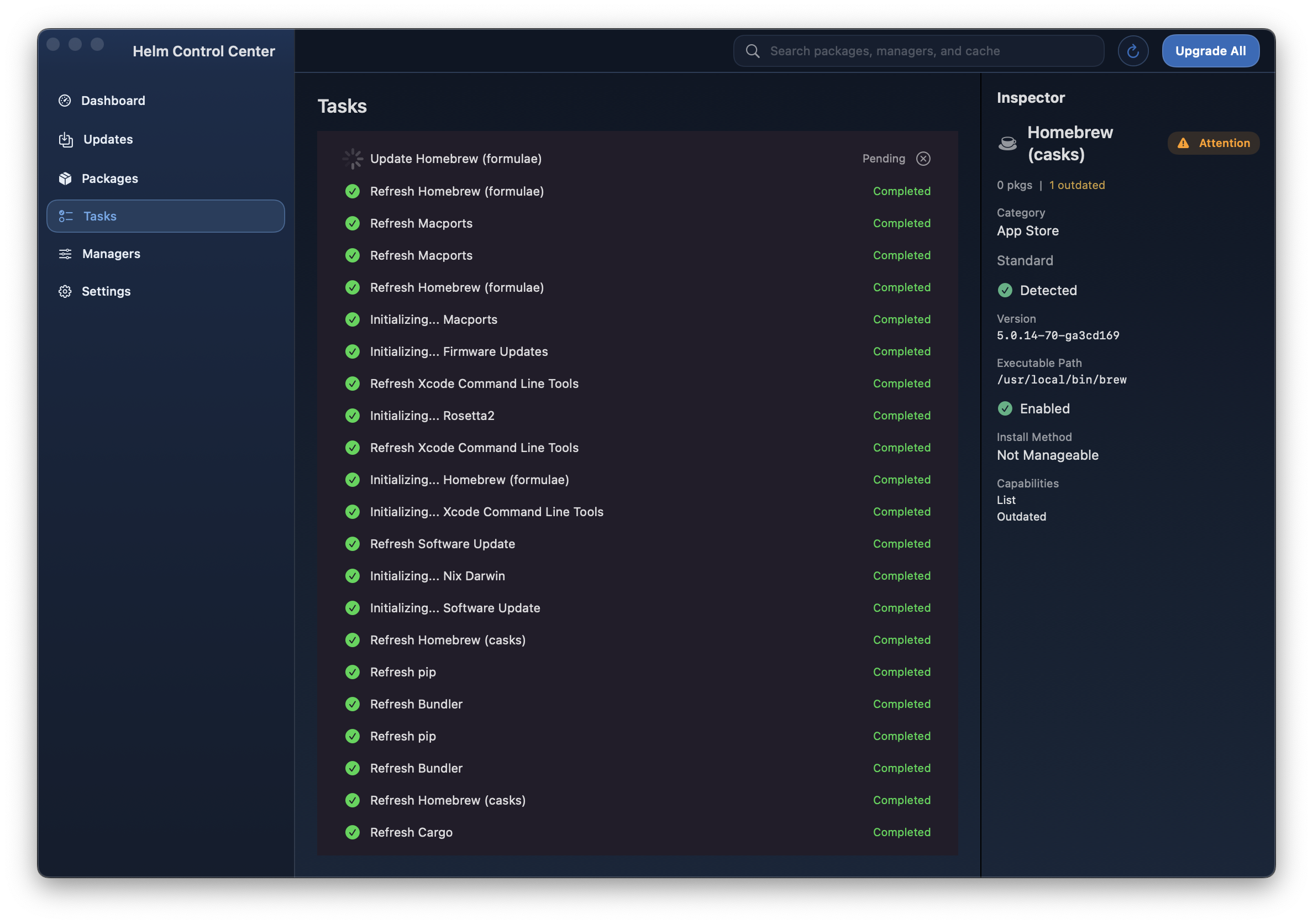
Control Center — Tasks
Section titled “Control Center — Tasks”Track all background operations in real time. Tasks show lifecycle states: Queued, Running, Completed, Failed, or Canceled.
Control Center — Managers
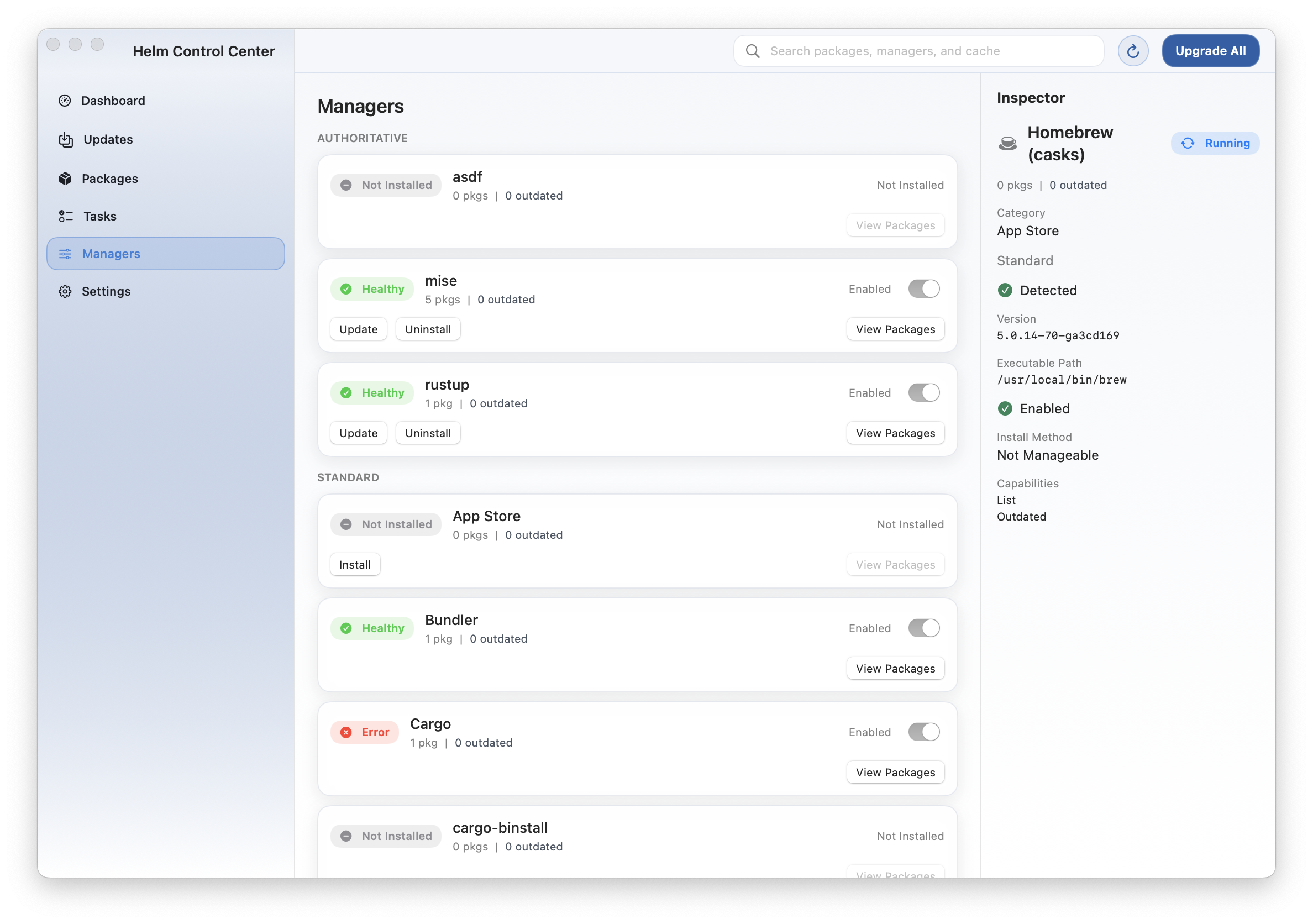
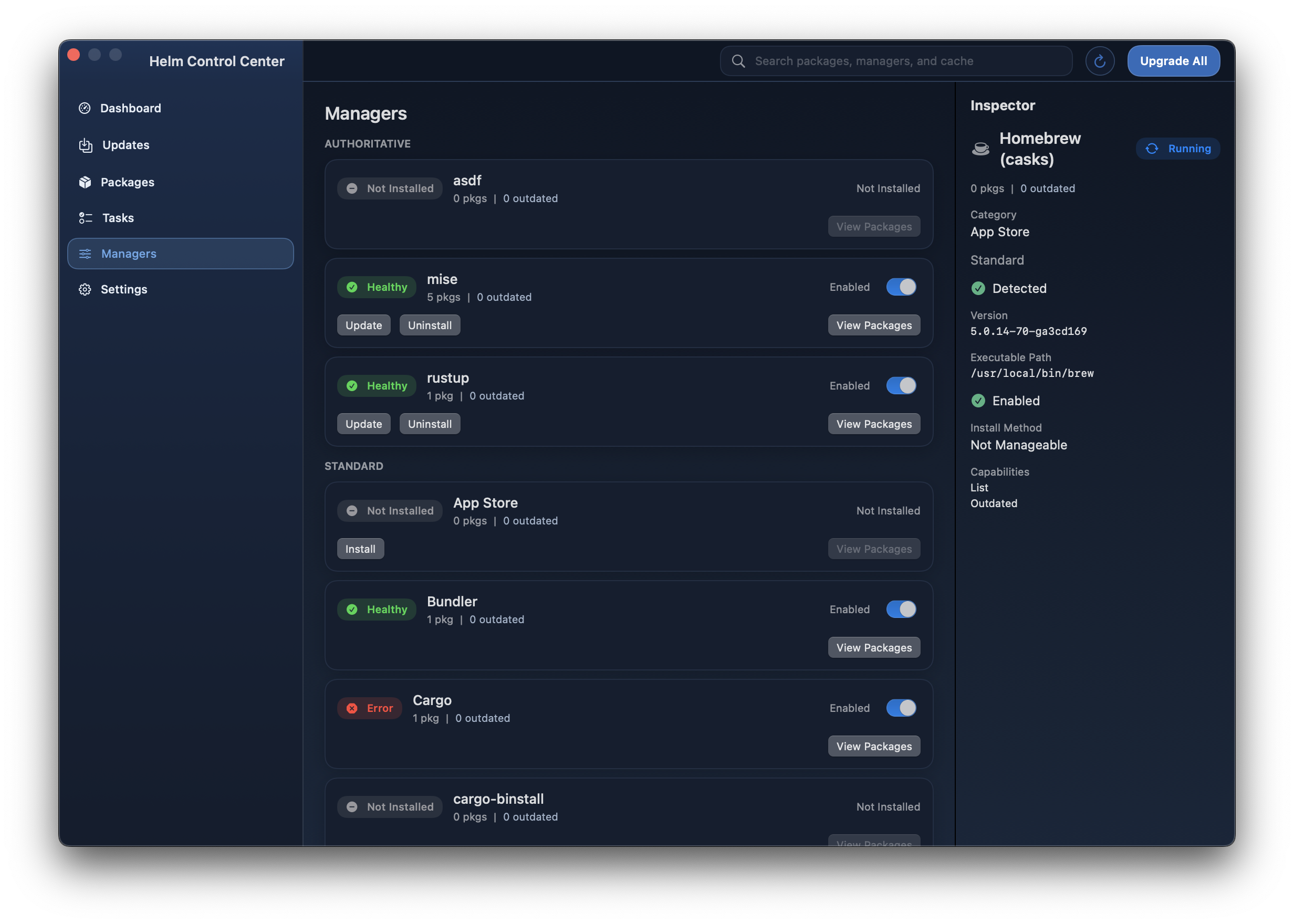
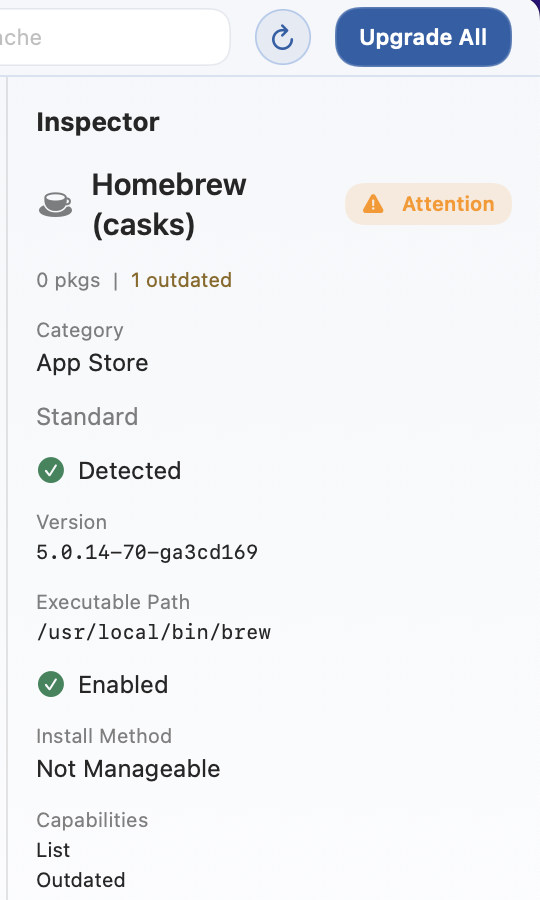
Section titled “Control Center — Managers”View per-manager health, detection status, and capabilities. Managers show health badges (Healthy, Attention, Error, Not Installed).
Control Center — Settings
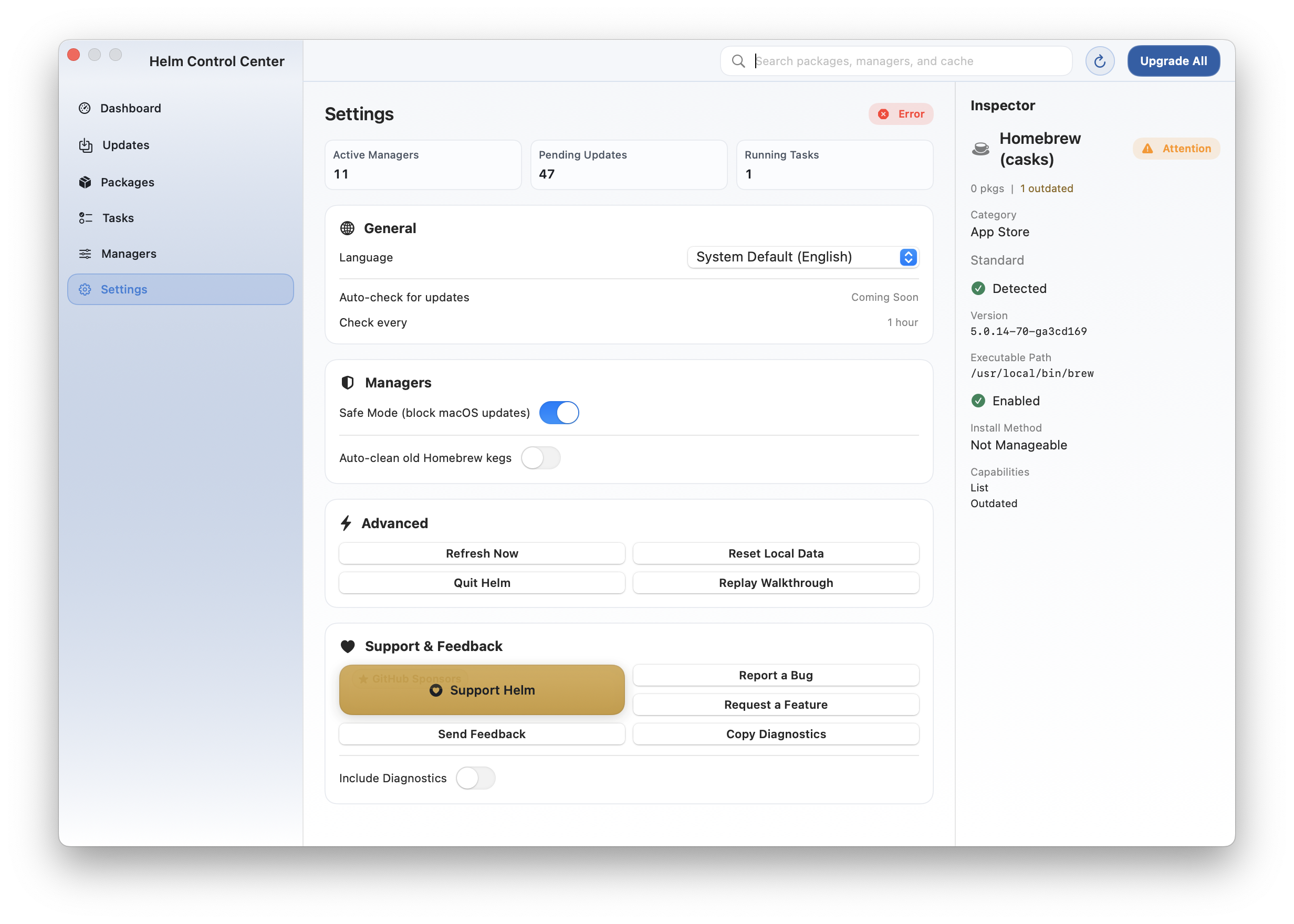
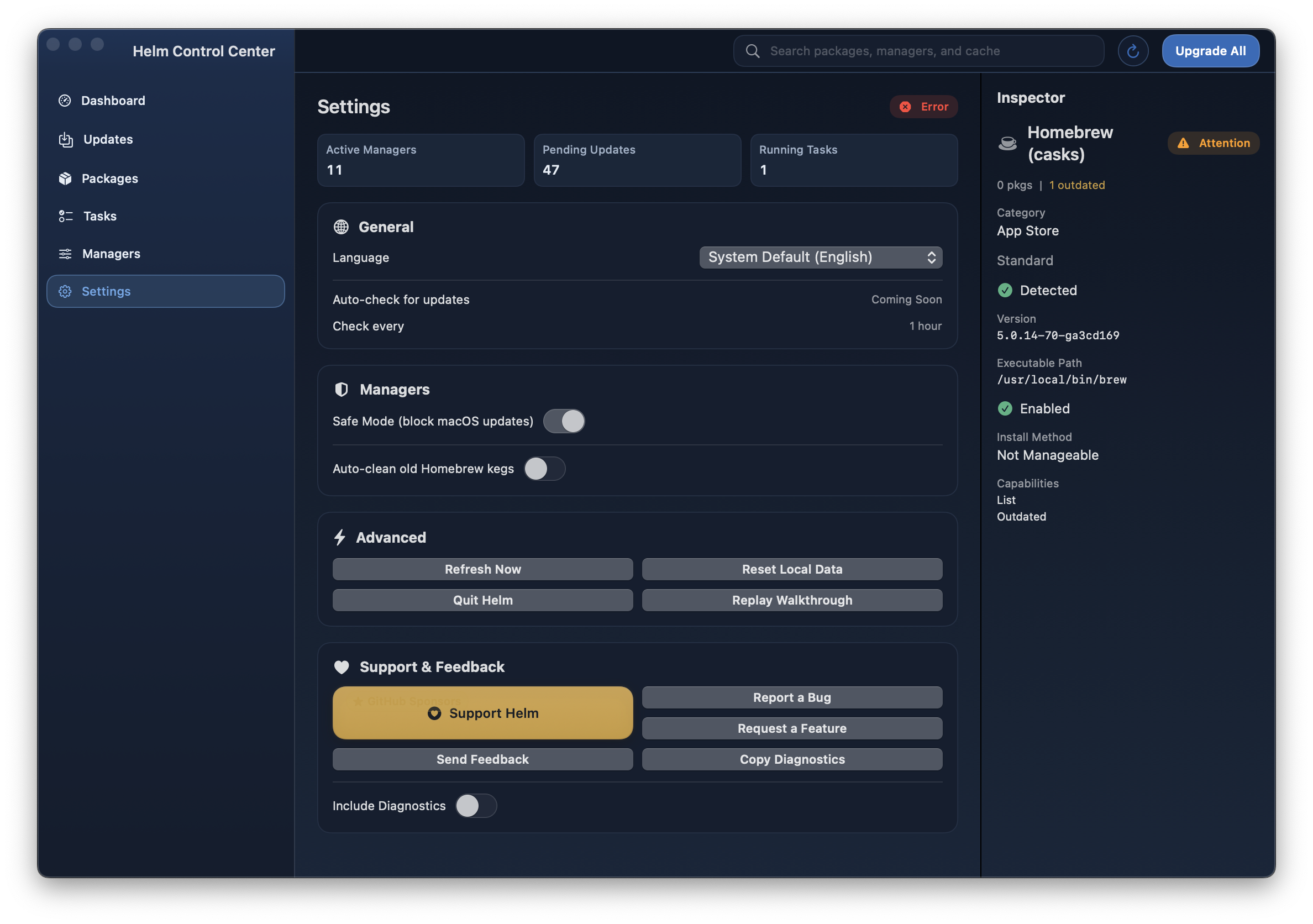
Section titled “Control Center — Settings”Configure cadence, policy, localization, and accessibility. The Support & Feedback card provides direct links to report bugs, request features, and share diagnostics.
Inspector Sidebar
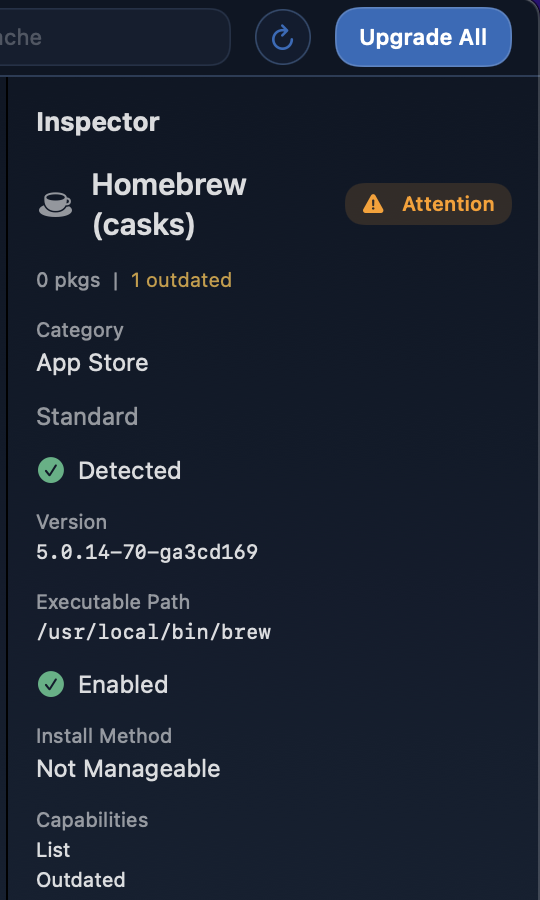
Section titled “Inspector Sidebar”Select any task, package, or manager in the Control Center to open the inspector sidebar. It shows contextual detail: version info, pin state, manager attribution, health badges, and available actions.
Onboarding Walkthrough
Section titled “Onboarding Walkthrough”On first launch, Helm offers a guided walkthrough using spotlight overlays that highlight key UI elements with step-by-step explanations. You can replay it anytime from Settings.